Documentation
Postlink is a platform designed for seamless remote audio post. Stream flawless audio and video direct from your session to clients and talents via supported browsers with sample accurate sync. Record up to four channels across four Talents at once, with high quality audio delivered directly to your session. Includes integrated video conferencing.
Quick Start
- Create an account and start the free trial.
- Install the Apple Pro Video Formats.
- Get the plugin, install it, and put it on a new Stereo Aux.
- Bus your mix to your new Aux, video will be sent automatically.
- Open your Engineer link in Chrome and send out the Client and Talent links (viewable in your dashboard).
- Select conferencing devices as you normally would, and then optionally select a separate device for monitoring the Postlink Stream.
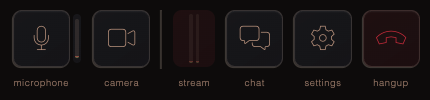
- Join the conference. To monitor playback in the browser click the meters above "stream" to unmute the monitor device you selected above.
Dashboard / Room Management
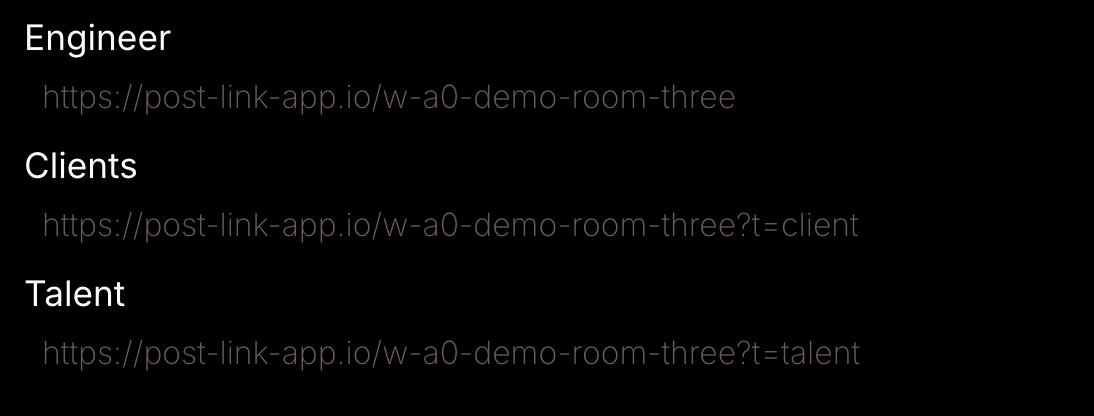
Once you create an account you will be in the dashboard. You'll see your new room listed and a set of three links: one for the Engineer, one for any Clients and one for any Talents. You can create as many additional rooms as you want, each will have their own set of links and each will be authorized separately. To authorize a room select the subscription type and click Add A Subscription. You can manage subscriptions for each room by clicking Billing.
Plugin
- Pro Tools on Mac >= 10.15 (Intel or Apple silicon).
Click Get The Plugin to download and install as you normally would. It's a universal binary that works on Intel and Apple silicon macs. Then put it on an Aux track.
Send And Receive Audio
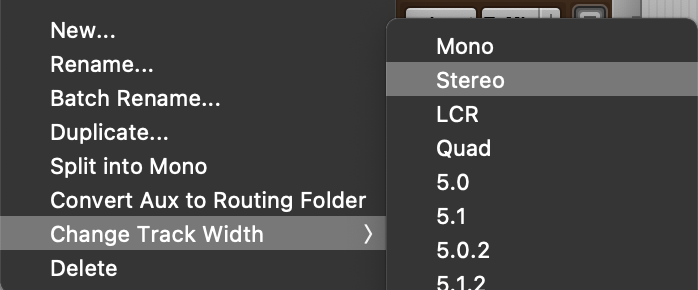
You can send and receive up to four channels of audio. To set the number of send channels you specify the Aux's Track Width. Do this when first creating the Aux, or update an existing one by right clicking on the track name area.
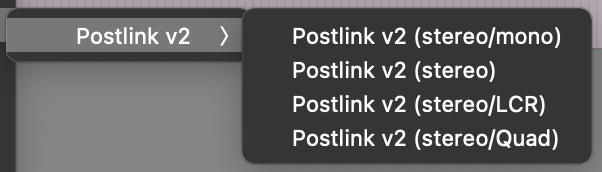
To set the number of receive channels, instantiate the Postlink Plugin with the corresponding number of output channels (in the plugin menu you can choose from one to four outputs).
Routing
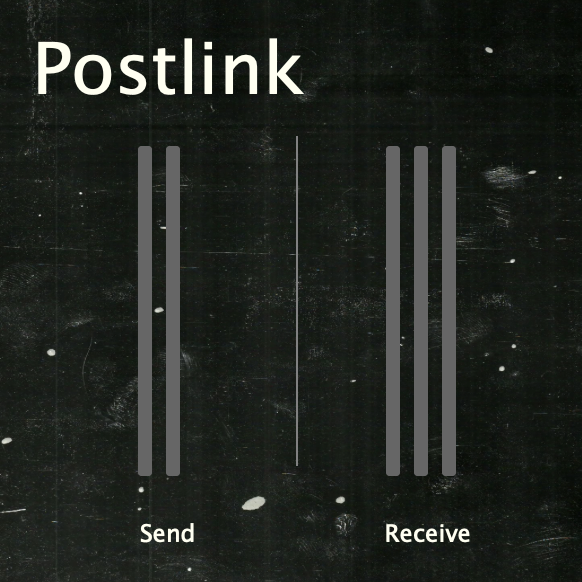
For sending, create a bus that matches the Aux's input channel count and assign it as you normally would. For receiving, do the same for the Aux's output, then create sub paths in the size and configuration that you'd like. From the example above, create an LCR bus, and then three mono subpaths if you want to record on three separate mono tracks, or one stereo sub path and one mono sub path if you want to record on one stereo track and one mono track. And so on.
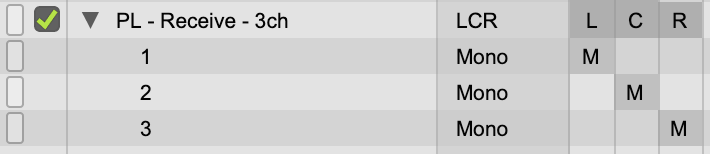

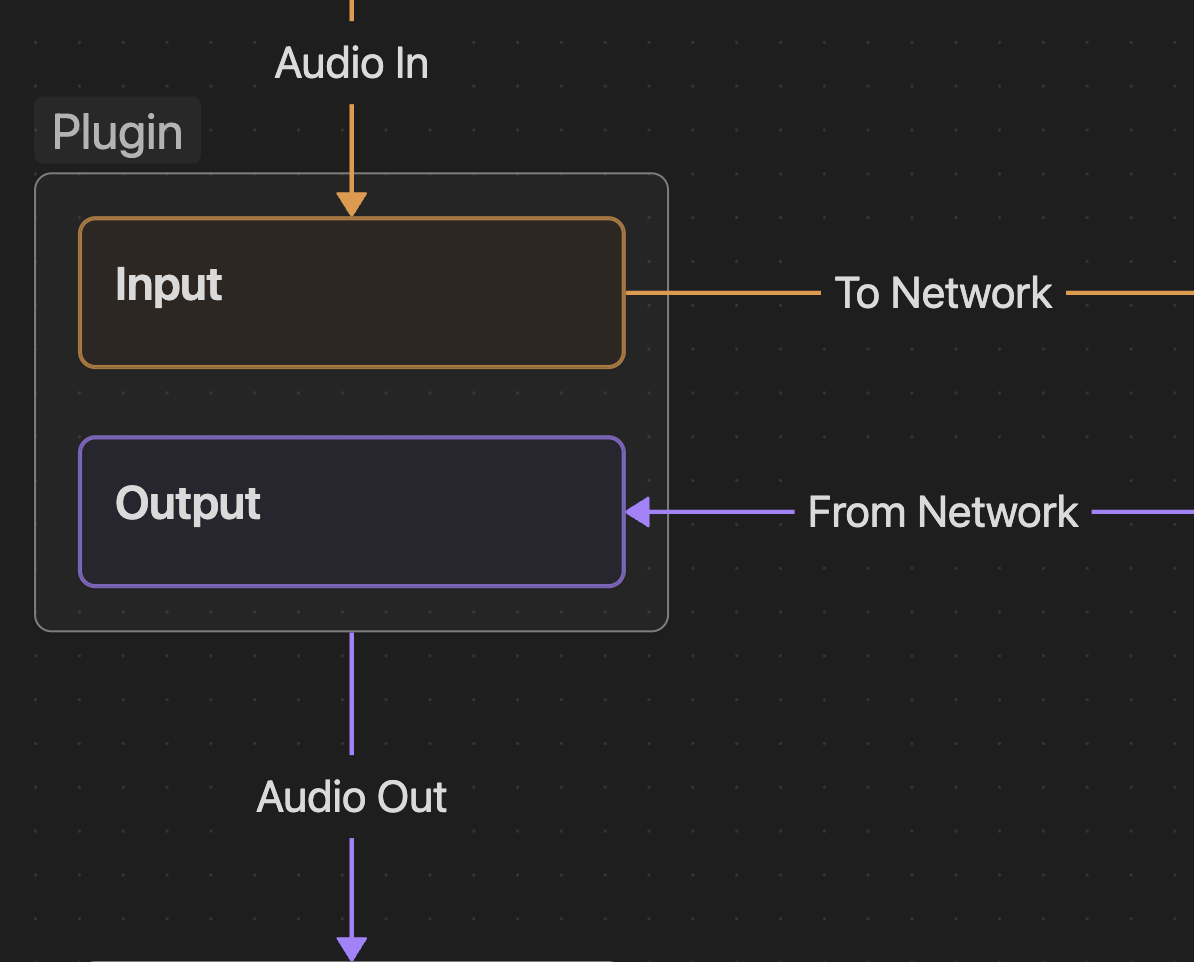
Any audio sent to the plugin's input is sent to the network while any audio received from the network is delivered to the plugin's output. Illustrated here:
Video
The plugin automatically adds any applicable video to the audio stream with sample accurate sync.Links
Engineer: Chrome or Edge on Mac.
Clients: Chrome, Safari or Edge on Mac, Windows, iOS or Android.
Talents: Chrome or Edge on Mac or Windows.
Engineer Devices + Config
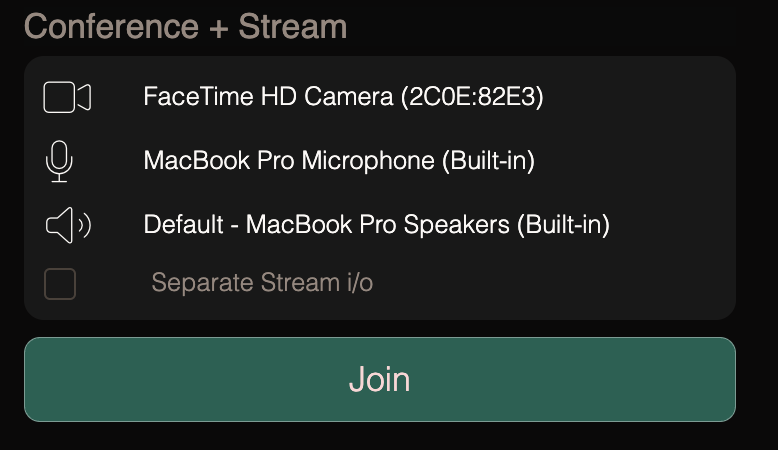
Postlink features integrated web conferencing. Select the conference camera (optional), mic and speaker here. If you want to route these to your session you can use Pro Tools AudioBridge or any other virtual audio device.
You can also select a separate output device for monitoring the Postlink Stream (both send and receive). Mostly engineers will keep this muted since they will be listening via Pro Tools. This is the audio source that will be in sync with any video displayed in your browser.
Under poor network conditions you can check lower video stream quality to stream video at a lower bitrate.
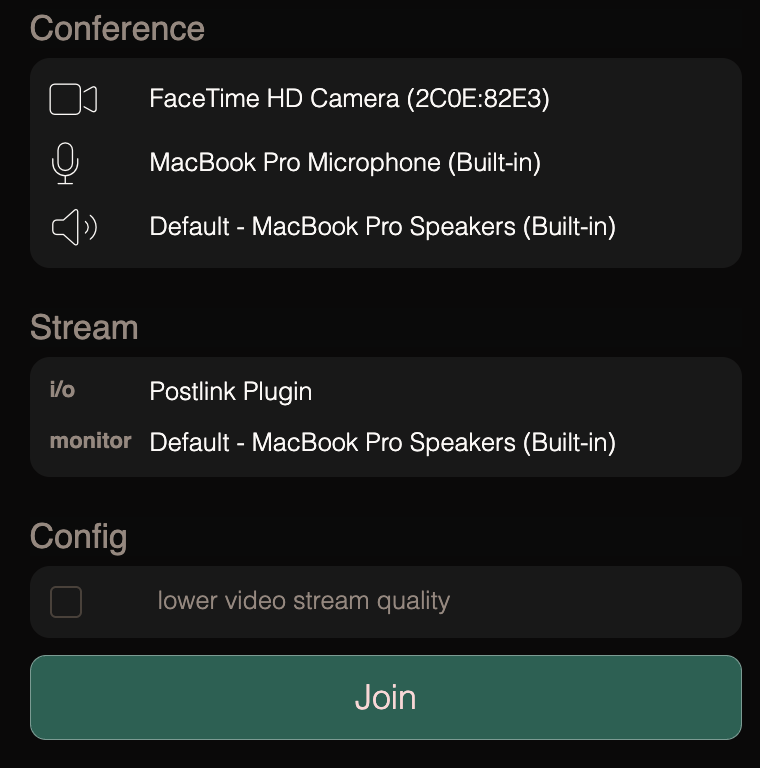
Once joined you can click the meters above "stream" to mute/unmute this Postlink Stream monitor device selected above.
Client / Talent Devices + Config
For simplicity, clients see the same device options but without the separate monitor device, as they will always want to hear both the Postlink Stream and the conference. Talents default to the same, however they have an additional option: Separate Stream i/o enables multi channel streaming between two or mote Postlink Plugin instances. For mono sources, Talents can just use the browser directly and this option should be left un-checked. More on this below.
Talents
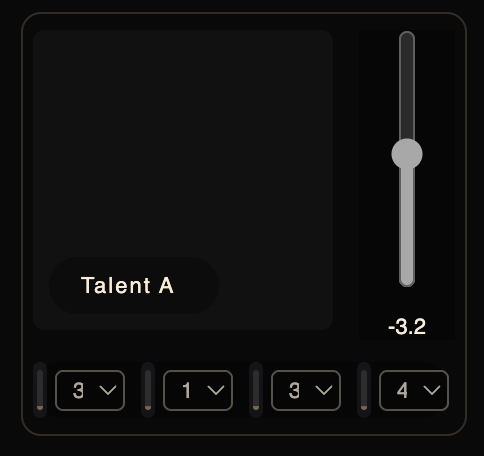
With Postlink, talents join the same conference as everyone else, only their audio is always delivered in high quality. Engineers receive this at the Postlink Plugin directly, specifying the destination channel via the selectors under the Talent's conference tile. Talent tiles also have level sliders.
Separate Stream i/o
For mono sources, Talents can use the browser directly, selecting the correct input and output devices as they normally would. However, browsers are inherently limited in how many (and which) audio channels can be captured, so to record multi-channel, Talents (or a remote studio) can select Separate Stream i/o and then instantiate the Postlink Plugin as described above (always free, available here). A single Talent (or a studio) can now send up to four channels of high quality audio (as always, delivered direct to the Engineer's copy of the Postlink Plugin). All setup and routing for Talents using Separate Stream i/o is exactly the same as it is for the Engineer, the only exception being that Talents operating in this way cannot send video. Talents/Studios that do this should still always use the Talent link!
The Remote Studio would:
- Download and install the Postlink Plugin (always free, available here).
- Install and set it up as described above.
- Open the Talent link you send them and click Separate Stream i/o.
- Set the conference devices as described above.
- Join the conference.
You would:
- Join the conference.
- Select the destination channel for each source channel on the Remote Studio's conference tiles.
- Create and route your Aux output sub paths as described above.
- Record.